
To get started and claim your 14 days free trial you will need to sign up for a free trial.
Once you’re registered, follow the three simple steps below to complete your setup.
To get your property data we’ll need to connect to your property management CRM. Login to your push.property control panel, click on Property Feeds and select the CRM that you use. Enter your data feed credentials in the form. If you don’t have these you may need to contact your CRM provider (some may require you to apply or pay for this service).
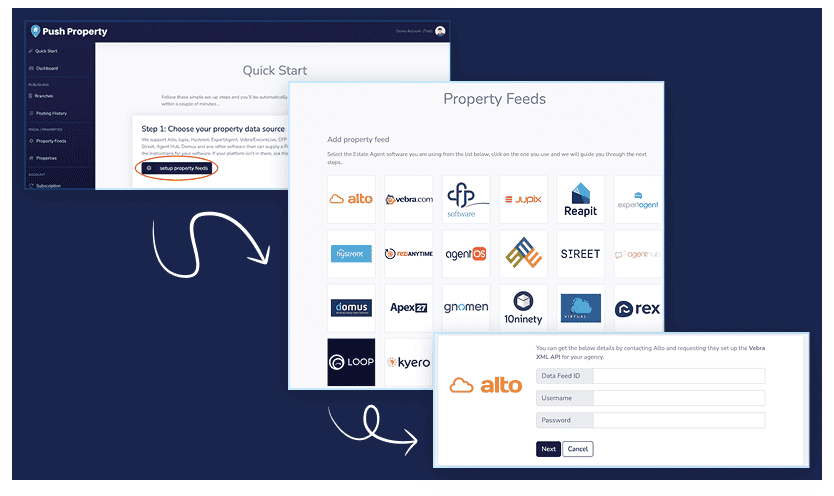
One connection. All your property data, synced automatically.
Can’t see your CRM provider?
Contact us with details of which CRM you use – we can integrate with most services.
Once you have connected your property feed you will see that your branches are created and all your properties will be available to post.
When you connect your CRM we will pull in all your properties and create all of your branches. The details we hold will be based on the information your CRM provider sends. It is important that this branch information is current and up to date.
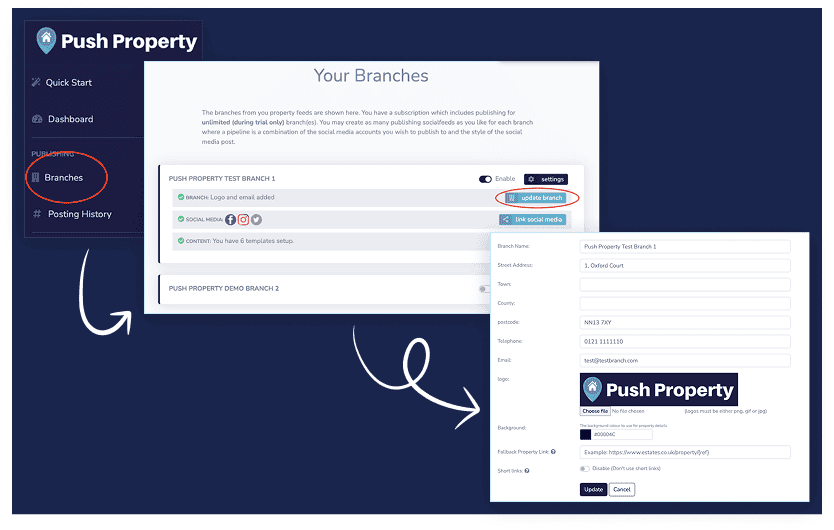
If you know your brand colours you can add the HEX code for your brand colour here, but this doesn’t get used in your posts so leave it blank if you don’t know it. Ignore fallback property link and short links.
Note
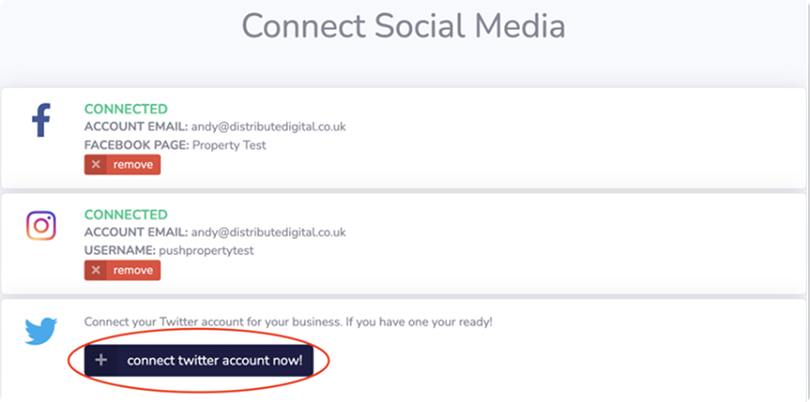
We currently support Facebook, Instagram and Twitter – you’ll need to have your login details for each channel to hand to complete this stage.
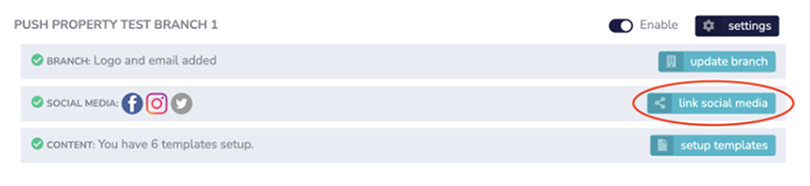
Return to Branches and click on “link social media” for each branch in turn and follow the prompts for your chosen channels.
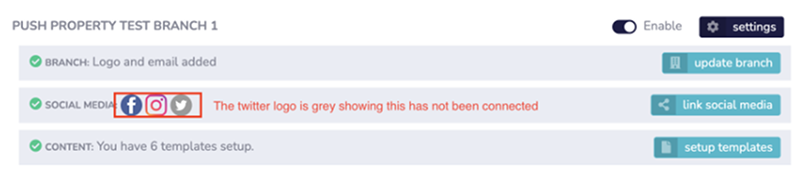
The final step is to set-up your templates. Each template you create lets you customise how it looks, choose what properties the post is for and decide when it gets posted. You can create as many templates as you like.
Click on templates (you will need to do this for each branch), in this video I will show you how to do this for a single branch, once you have done this you simply repeat the steps for each branch.
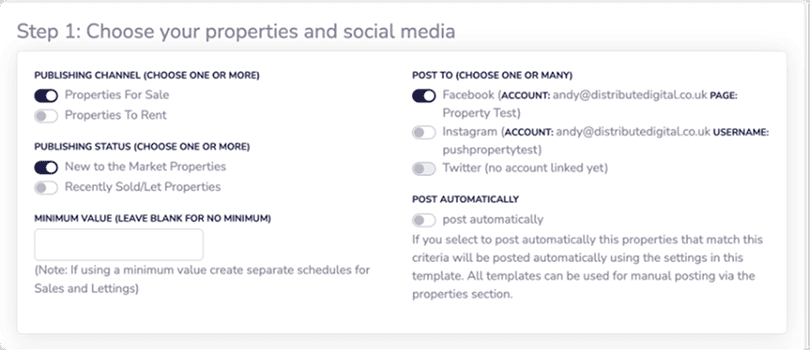
This section determines when to use this template, the social platforms to post to and whether this is an automated post.
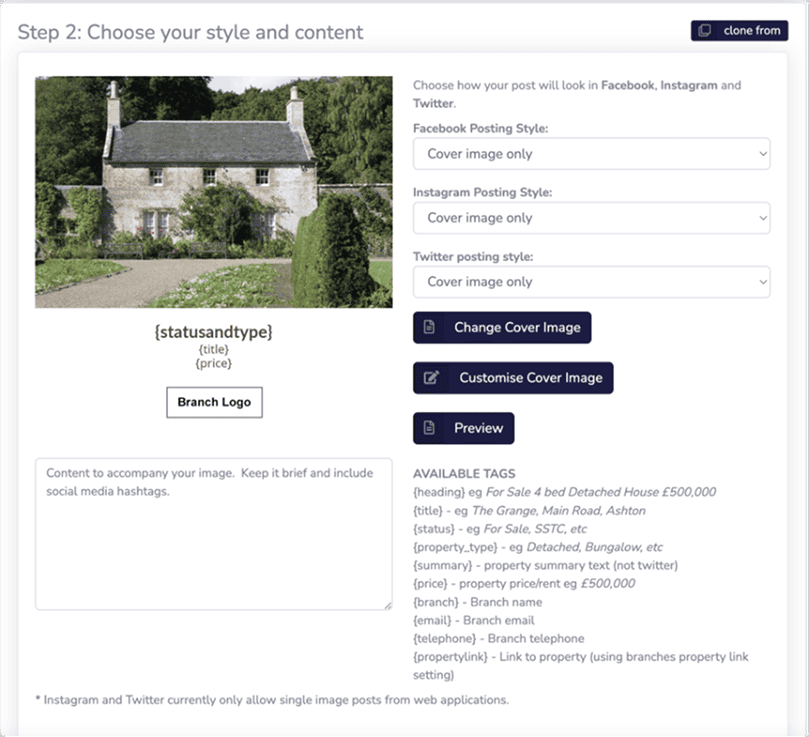
Step 2 allows you to choose how you want a post to look and the written content that you would like to appear on the post.
Note
The thing that helps with this is the Available tags section. This allows you to pull details about every property from your feed, so that each post is unique. There is a list of available tags next to the content box.
					{heading} - i.e. For sale 4 bed Detached House £500,000
{title} - i.e. The Grange, Main Road, Ashton
{status} - i.e. For Sale, SSTC etc.
{property_type} - i.e. Detached, Bungalow etc.
{summary} - property summary text (not twitter)
{price} - property price/rent i.e. £500,000
{branch} - branch name
{email} - branch email
{telephone} - branch telephone
{propertylink} - link to property (using branches property link setting)
Available dynamic tags
Note
You will see that each tag has brackets around them, you must use these brackets to make the personalisation work, for example if you want to show the price of a property you would enter {price}.
Your post should be a nice mixture of written and dynamic content and the user will never know your posts are automated.
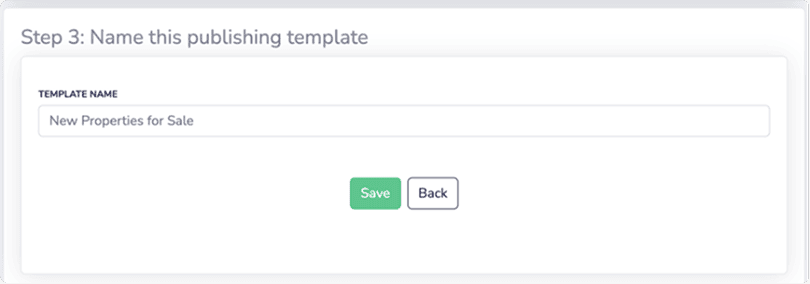
Once you are happy with the template simply give it a name in step 3 and click save. This will be saved to your account and you will be able to add this to all your branches now its saved.
You may want multiple templates per branch and you can create as many as you need. The common post types are:
If you struggle with any of the steps schedule a support call with our team and we can guide you through the process.

Book a short onboarding call and we’ll help you connect your data, check your setup, and answer any questions you have. Why book an onboarding call?